Configuring SQL Sources


|
Configuring SQL Sources |
|
|
If you create reports that use ODBC, you'll eventually need to customize and configure ReportPro's SQL Query object. The SQL Query object is used by ReportPro to retrieve information from ODBC sources.
As with sections and local tables, the SQL Query object is configured in the Setup Sections dialog. Here you can add and delete tables from a query. You can also control the relationship between tables and even customize the SQL Select statement.
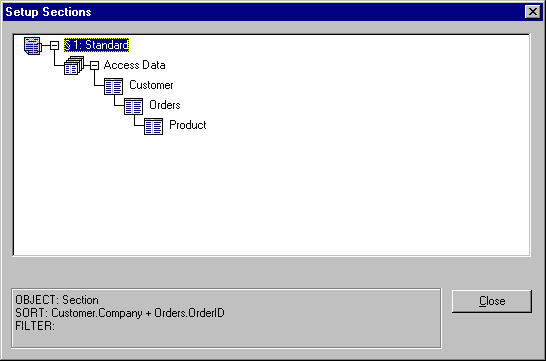
Figure 33 illustrates a typical SQL Query object that uses three SQL Tables. SQL Tables are considered attributes (rather than children) of the SQL Query object since a query is simply a collection of related tables.
Child objects are normally separate entities that are joined to a parent object by a relationship as is the case when SQL Tables are related to each other. In the figure above, note that the Orders table is a child of the Customers table.
SQL Query Options Configuration options are available via a pop-up menu which is activated by clicking the right mouse button over the SQL Query object. Each of the options available in the pop-up menu is covered below.
Add Child Table/SQL Query This option allows you to add a child local table or SQL Query to the SQL Query. If you choose this option, you will be prompted to select a database driver and data source. See "Creating a Standard Report" for more information on specifying a data source.
When you add a child table or query, ReportPro automatically defines the relationship between the parent and the child. To modify the relationship, select the Relationship option for the child table or query.
Adding a child table or SQL Query does not modify the SQL Query. The procedure to add SQL Tables to a query is discussed under the SQL Table options below.
Login This option allows you to specify a login to use to connect to the SQL server. When you select this option you are presented with a dialog where you can specify a User ID and Password. The specified User ID and Password will be used to connect to the server the next time the report is opened. The current connection remains unchanged.
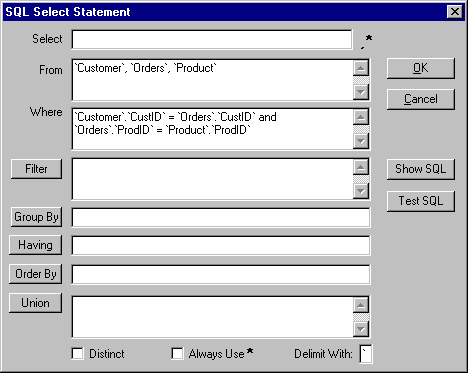
Setup SQL To provide complete control over the data retrieval process, ReportPro allows you to manipulate the SQL Select statement that is sent to the ODBC driver. A discussion of SQL is beyond the scope of this manual. Furthermore, it is assumed that the reader has a basic understanding of SQL.
The SQL Select Statement dialog is broken up into sections. Each section represents a particular clause in the SQL Select statement. Each section and option is discussed below.
Delete Item This option deletes the selected SQL Query. It is important to note that when you delete the query, the children of the query are also deleted.
SQL Table Options Configuration options for the SQL Tables are accessed via pop-up menu like all objects in the Setup Sections dialog. Each of the options are covered below.
Add Child SQL Table This option adds a new table into the SQL Query as a child of the selected SQL Table. ReportPro automatically creates the relationship between the parent and child table.
Delete Item This option deletes the selected SQL Table. It is important to note that when you delete a table you also automatically delete all the children of that table.
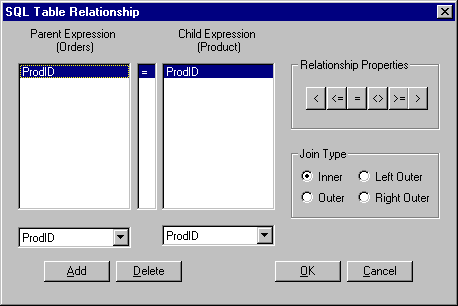
Relationship The SQL Table relationship implementation is different than that used for local tables since SQL hides the user from the implementation aspects of the table relationship and leaves that to the server.
The SQL Table Relationship dialog focuses on specifying conditions that relate tables rather than how they are related. The dialog contains three list boxes. The left list box holds columns from the parent table. The right list box holds columns from the child table. The center list box holds the operator that defines the relationship between the parent and child columns.
To add a new condition, click the Add button and a new row will be added to the list boxes. To change either the parent or child column, select the desired column from the combo box located below the appropriate list box. To change the relationship operator, click the desired button in the Relationship Operators group.
To delete a relationship condition, highlight the desired row and click the Delete button.
The Join Type group allows you to specify the SQL join type. This feature is server dependent and may not be supported by all servers. This feature also affects how the SQL Select statement is generated. If the Inner Join option is selected, ReportPro generates a SQL 1.0 compatible Select statement. Any other option causes ReportPro to generate a SQL 2.0 compatible statement. |