Print Preview


|
Print Preview |
|
|
ReportPro's Print Preview is a great way to get a sneak preview of how your report will look when it is printed. You can use the Print Preview throughout the report creation process to see how changes made to the report will look when they are printed. To display the Preview window, select the File, Print Preview menu option from ReportPro's main menu. You can also access the Print Preview via the toolbar on the report work window.
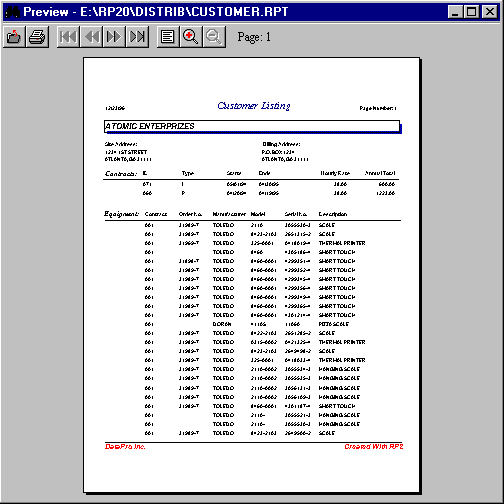
The white area in the middle of the preview window represents a page of the report. The page shown in Figure 69 is displayed in the Full Page zoom mode where you can see the contents of the entire page. If you position the mouse over the page and click the left mouse button, the paged is zoomed to the Page Width mode.
In the Page Width mode, ReportPro scales the page so that it is the same width as the Preview window. Depending on the height of the paper, vertical scrollbars may appear to allow you to scroll the page vertically.
If you click the left mouse button again, the page will zoom to the Full Scale mode. In this mode, the page is shown without any scaling. Here you get the best representation of what the printed output will look like. Unless you are printing on very small paper, you may not be able to see the entire page. If necessary, vertical and horizontal scrollbars will appear allowing you to scroll across the page.
You can also click the right mouse button over the preview page to zoom out through the three different zoom modes. The size of the preview also has an affect on page scaling and how much of the page can be displayed.
The Preview window has it's own menu and toolbar. The options available on the menu enable you to move through the report and zoom the page display. Each of the menu options is outlined in the table below.
|